 Viktar Patotski ·
· Cloud & Cost
· 9 min read
Viktar Patotski ·
· Cloud & Cost
· 9 min read
AWS Cost Explorer: How to Actually Read Your Bill
Your AWS bill is not a mystery, you just have not grouped it right. Cost Explorer is free and shows you where every dollar goes in about fifteen minutes. Here is the exact drill-down, which cost view to trust, and the one free alarm to set before you close the tab.
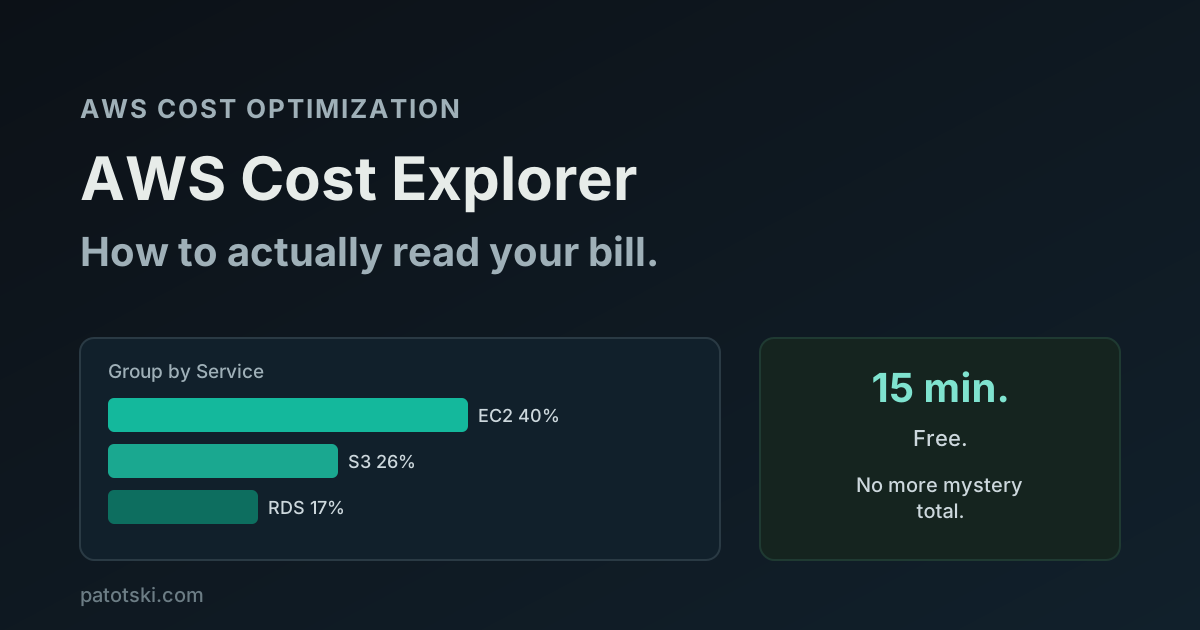
TL;DR - Most teams look at one number (the total) and feel vaguely anxious. Cost Explorer turns that into “S3 is 40% of the bill and it doubled in March.” It is free, and you can read your whole bill in fifteen minutes:
- Group by Service first. That alone tells you which three services are your bill. Everything else is rounding.
- Then group by Usage Type. This is the granular line: not “EC2” but
BoxUsage:c5.xlargeandDataTransfer-Out-Bytes. This is where the real answer lives.- Switch to Amortized cost if you bought any Reserved Instances or Savings Plans. The default (Unblended) makes a year of upfront commitment look like one giant spike in one month. Amortized spreads it correctly.
- Turn on Cost Anomaly Detection before you leave. It is free, it uses ML to learn your normal pattern, and it emails you when spend jumps. It is the single highest-value click in the console.
The UI is free. The API costs
$0.01per request. You have no excuse not to look.
First, turn it on
Cost Explorer is off until you enable it, and once on it cannot be turned off (no downside, it is read-only). The UI is free. The data goes back 13 months, covers the current month, and forecasts the next 18 months. When you first enable it the current month appears within about 24 hours and the history takes a few days to backfill.
One thing to know up front: Cost Explorer reads the same dataset as the Cost and Usage Report. It is the friendly UI on top of the same numbers your finance team would pull from the raw export. For most teams the UI is all you will ever need.
The one move that explains your bill: group by Service
Open Cost Explorer, set the date range to the last 3 months, set granularity to Monthly, and group by Service. That is it. That single chart answers “where is the money going” for almost every account.
Nearly every AWS bill is dominated by two or three services. EC2 and RDS, or S3 and CloudFront, or one big managed service nobody remembered to size. The long tail of forty other services usually adds up to noise. Group by service and the shape of your bill appears immediately.
Then group by Usage Type for the real answer
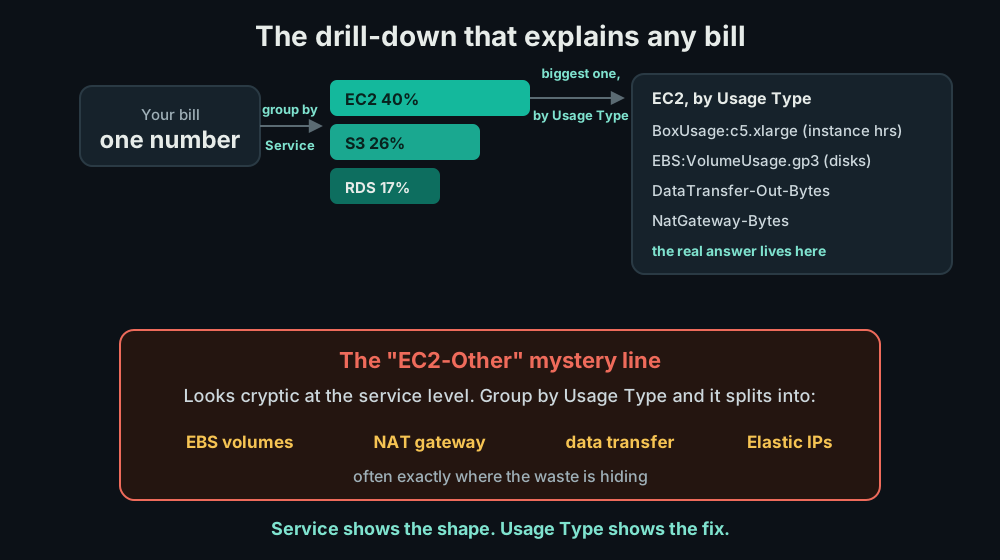
“EC2 is 60% of my bill” is a start, not an answer. The next move is to filter to that one service and group by Usage Type. Now you see the actual line items:
BoxUsage:c5.xlarge(the instance hours themselves)EBS:VolumeUsage.gp3(the disks)DataTransfer-Out-Bytes(egress)NatGateway-Bytes(the NAT gateway processing charge)
This is where you find the surprise. Often the instance hours are reasonable and the cost is hiding in EBS volumes left attached to nothing, or in data transfer, or in a NAT gateway. Usage Type is the most granular dimension Cost Explorer offers, and it is the one that turns “the bill is high” into a fix.
The EC2-Other trap. At the service level you will see a line called EC2-Other and wonder what it is. It is the junk drawer: EBS volumes, data transfer, Elastic IPs, and NAT gateway charges all get bucketed there. If EC2-Other is large, group by Usage Type to crack it open. It is one of the most common “what is this line” questions, and it always resolves into one of those four.
You can group and filter by other dimensions too: Region (is one region costing more than you expected?), Linked Account (which team?), Instance Type, and any cost-allocation Tag you have set up.
Which cost number to trust: Unblended vs Amortized
Cost Explorer can show your spend three ways, and picking the wrong one will confuse you badly if you have bought any commitments.
| View | What it shows | When to use |
|---|---|---|
| Unblended | Actual charges the day they hit (cash basis). Default. | No commitments, or you want raw cash flow |
| Amortized | Spreads upfront RI/Savings Plan fees evenly over term | You bought any Reserved Instances or Plans |
| Blended | Averages rates across consolidated-billing accounts | Rarely. Mostly ignore it |
The trap is the default. Unblended is cash basis: if you buy a 1 year All Upfront Reserved Instance, Unblended shows the entire year’s cost as one huge spike in the month you bought it, then near-zero after. That looks like a disaster and is just an accounting artifact. Amortized spreads that upfront fee evenly across the term, so each month shows the true effective cost of what you actually ran. If you have bought any commitment, read Amortized. Blended only matters in specific consolidated-billing math and you can mostly ignore it.
Three reports worth opening beyond the graph
The main graph is 90% of the value. Three preconfigured reports cover the rest:
- Savings Plans utilization and coverage. Utilization should be near 100% (are you using what you committed to?). Coverage tells you how much eligible usage is still on On-Demand. These two numbers are the whole commitment health check. I covered what they mean and how to act on them in Savings Plans vs Reserved Instances.
- Reserved Instance utilization and coverage. Same idea, for RIs.
- The cost comparison view. Compare two periods side by side and Cost Explorer tells you which service drove the change. This is how you answer “why was last month higher” in thirty seconds instead of squinting at a line chart.
Set the free safety net: Cost Anomaly Detection
Before you close the tab, turn on Cost Anomaly Detection. It is free. It uses machine learning to learn your normal spend pattern and emails you when spend deviates from the expected range.
It is smarter than a budget threshold because it understands seasonality. It learns that Mondays are expensive because batch jobs run, that month-end spikes, that December is quiet. So it does not page you for a normal Monday, it pages you when something genuinely unusual happens, like a runaway test environment or a misconfigured service quietly scaling up. A flat budget alarm cannot tell those apart. This one alert catches the “left it running over the weekend” class of mistake that costs real money.
When you outgrow the UI: the Cost and Usage Report
Cost Explorer’s UI is enough for most teams forever. When you need line-item detail (every resource, every hour, joined to your own tags and queried with SQL), that is the Cost and Usage Report: the raw billing data delivered to S3, queried in Athena or loaded into a BI tool. Same underlying numbers, just the full-resolution export instead of the dashboard. Reach for it when “group by Usage Type” stops being granular enough, not before.
A note on cost: the UI and most reports are free. Two things cost a little.
The API is $0.01 per paginated request, and hourly + resource-level
granularity is an opt-in feature at $0.01 per 1,000 usage records. Neither
matters for normal interactive use.
Your first fifteen minutes
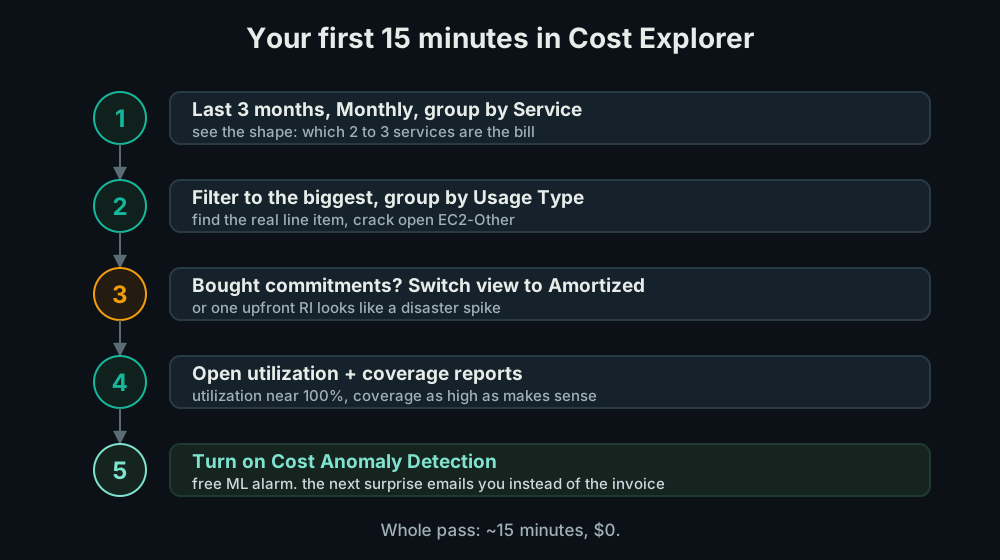
- Last 3 months, Monthly, group by Service. See the shape.
- Filter to the biggest service, group by Usage Type. Find the real line.
- If you bought commitments, switch the view to Amortized.
- Open the utilization and coverage reports. Utilization near 100%, coverage as high as makes sense.
- Turn on Cost Anomaly Detection. Free alarm, set and forget.
That is the whole first pass. Fifteen minutes, no cost, and you now know your bill better than most teams know theirs.
The traps
Reading Unblended with commitments. The number one source of “why does my bill look insane this month” panic. You bought an upfront RI and Unblended shows it all at once. Switch to Amortized.
Stopping at the service level. “RDS is expensive” is a feeling, not a fix. Stop there and nothing changes on Monday. Drill one more click to Usage Type.
Ignoring EC2-Other. It looks like a mystery line so people skip it. It is usually EBS, NAT gateway, or data transfer, and it is often where the waste is. Group by Usage Type and look.
No anomaly alert. Without it, you find out about a runaway resource on the invoice, thirty days late. The alert is free and takes one minute.
Summary
Cost Explorer is free, and reading your bill is a fifteen-minute job, not a finance project. The checklist above is the whole method: the two things that trip people up are reading Unblended cost when they hold commitments (switch to Amortized) and skipping the free Cost Anomaly Detection alarm. Run the pass once a month and the AWS bill stops being a mystery.
Once you know where the money is, the fixes have their own playbooks: reduce AWS RDS costs, the NAT gateway cost trap, where data transfer costs leak, and Savings Plans vs Reserved Instances for the commitment side.
Want someone to read the bill with you and name the top three fixes? I do this as part of AWS Cost Optimization. Book a free 30-minute call and we will open Cost Explorer together.